
Envira Gallery Review: Enhance Your Website’s Appeal with Ease (February 2026)

Envira Gallery Review: You only have 15 seconds to grab your visitor’s attention when they land on your website.
So, what can you do?
Well, blogs mostly use images to grab attention. That’s why you need an awesome gallery on your website that won’t slow down your page speed.
I have a solution for you – Envira Gallery Pro. It’s one of the most popular and fastest gallery plugins for WordPress, with over 300,000 active installations. You might have already heard of it.
If you want to learn more about this plugin, I’ll share my own experience with it. The review will help you to understand more about the plugin.
So stick around – you might discover something new!
Table of Contents
Overview of Envira Gallery Plugin
Envira Gallery is a perfect plugin for bloggers, photographers, and e-commerce sites to showcase their products in an image gallery.
And with the latest version, you can even add a video gallery to make your video content more accessible to visitors.
You can buy the premium plugin on the official website or on CodeCanyon. But if you want to try it first, there is a lite version available in the WordPress repository.
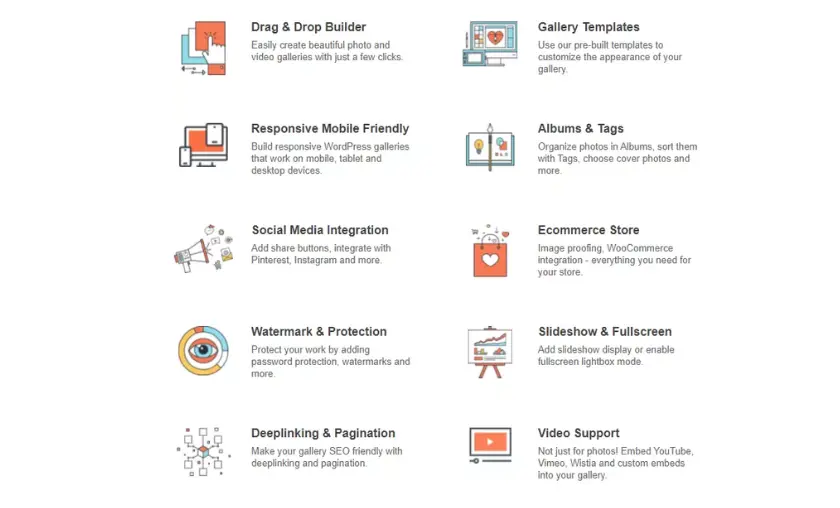
Over 8 years old, Envira Gallery is one of the most popular WordPress plugins. It offers features like Lightbox, Woocommerce integration, watermarking, and password protection. And the best part is that it keeps your page super fast, whether you have the extension installed or not.
Since speed is now an important ranking factor for Google, you don’t want to compromise it.
Envira Gallery Review: All Settings

All Envira Gallery settings are located on the right side of the WordPress dashboard. There are five options to choose from.
Don’t worry if you’re not a WordPress expert – I’ll walk you through each one.
Envira Gallery Features Overview

In the first tab, “What’s New“, you will find the latest updates to the plugin’s existing features and new features added. You will also find the plugin documentation here.
The “Getting Started” tab contains instructions on how to use the plug-in. If you are a photographer or photo editor, you may be interested in adding Lightroom to your gallery. There are also some guides on how to avoid copying and pirating images.
I’ll talk about plug-ins in a separate section, so I won’t go into detail here.
Envira Gallery Settings
In this tab, you will have 3 other configuration options:
General
In the General tab, you can add and validate your license key. If you want to use the license on another website, you can deactivate it from here.

You can also make some basic changes, such as adding a new image to a gallery before or after the previous images.
If you decide to delete a gallery, you can also delete all the images it contains from your website.
You can even customize the loading color to your liking.
Standalone
This is a very handy feature. You can create a dedicated URL for your galleries so that visitors can access them directly. Let me explain what this means.
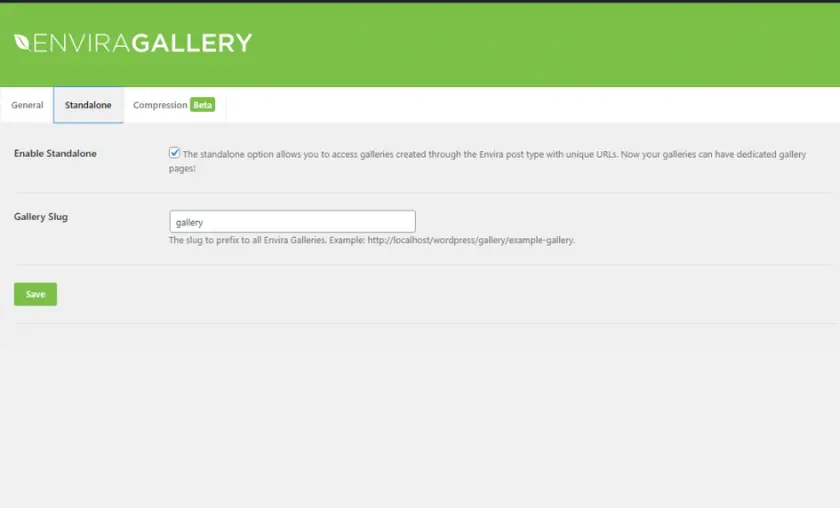
By creating a landing page for your visitors, they can view different galleries with multiple images.
For example, if you have six galleries with 200 images each, that’s 1200 images. That can be a problem for both users and Google. Your site may not load pages quickly, which translates into a bad experience.
But with this smart feature, you can create multiple galleries and add their URLs to your landing page. That way, visitors can easily access the gallery of their choice and have a positive experience on your website.
Compression
Images on a website can take up a lot of space and slow down page loading. And since faster is always better, compressing images can help you improve your search engine rankings.

You can also set a size for all your images. This way, all the images in your galleries will be the same size, which can improve both the user experience and the website design.
I would not recommend this feature for photography websites. As a photographer, you will know how important it is to show authentic photos to attract customers.
Tools
From the Tools panel, you can access three tools and check the status of your hosting account.
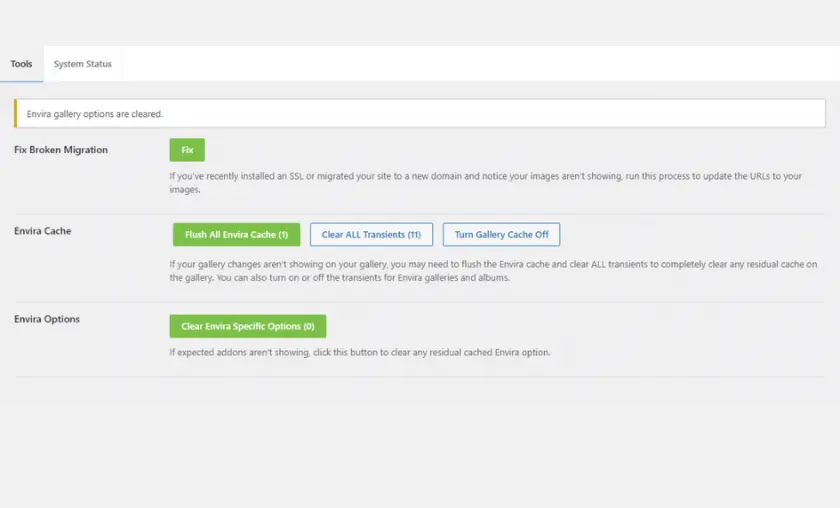
And these tools are not just for show. For example, if you update your permalink in the WordPress editor or add SSL after creating some galleries, you can redirect them all at once. I can’t think of a more useful tool than that.
Both ‘Envira Cache’ and ‘Envira Options’ serve the same purpose. If the gallery detects that one or more plugins are not working properly, it will display a warning.
You can also clear the entire cache or disable any gallery that is interfering with your website design.
Envira Gallery Add New Option
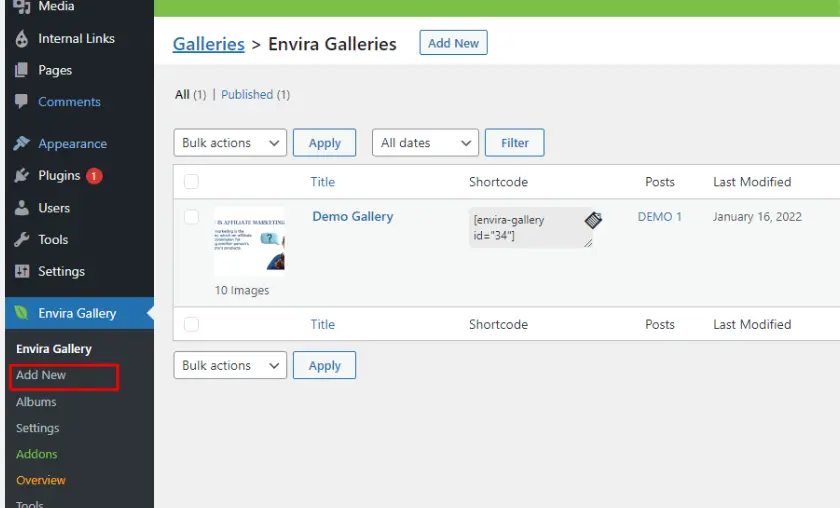
You can add a new gallery to your website in 3 ways.
Shortcode: To add a new gallery, you have to click on the “Add new” button. You can then name your gallery and add images to it. You can upload new images or use existing ones from your website.
Once you have created the gallery and saved it, you can copy the code it generates.
Next, open the page or post where you want to add the gallery and paste the shortcode there. And just like that, your gallery is ready to be displayed on the page!
Block:If you prefer not to use the classic editor, you can add a gallery using the Gutenberg Editor. To do this, you can create a gallery in the Envira Settings or directly on the page.
You can upload multiple images or select them from your website’s media library to create your gallery.
Envira Gallery Addons
This is where Envira Gallery really sets itself apart from its competitors. When you purchase the lifetime or PRO plan, you will have access to up to 32 add-ons.
Let’s take a look at them one by one.
Gallery Themes Addon:

This add-on makes it easy to create galleries using pre-designed themes. Just choose your favorite and customize it to your liking with a few clicks.
From the Settings tab, you can edit your theme. If you choose something other than “Automatic“, you can select the number of columns and gallery themes.
You can create independent galleries that are distinct from other galleries and from the posts or pages where you place them. You can even create a permalink for each gallery that redirects users to the gallery separately from the blog post.
Slideshow Addon:
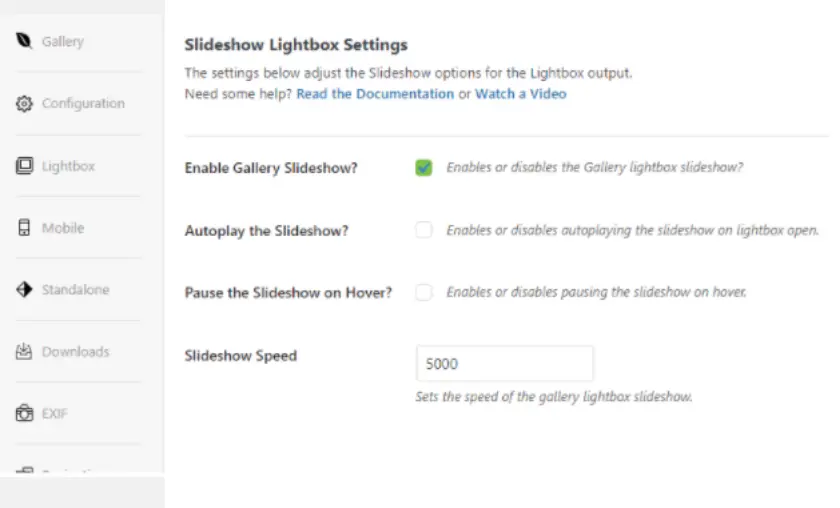
This function is ideal for galleries with many images. You can set it to play and pause automatically on mouseover. It’s a fun way to give your visitors a pleasant viewing experience.
In addition, you can set the time in milliseconds for the next image to appear.
Audio Addon:
If you want to add background music to your images, specifically in the lightbox, this add-on may come in handy.
Beaver Builder Addon:
Beaver is an amazing page builder plugin. It’s a must-have if you want to easily access your Envira Gallery while working on your website. Trust me, it’s a game-changer!
Supersize Lightbox Images:
The Lightbox addon comes preinstalled with this addon. You can easily enable or disable it in the Lightbox settings.
This way, your visitors will be able to see how the images will look like in fullscreen mode. It is really handy.
NextGEN Importer Addon:
If you use NextGEN Gallery on your website, you’ll be happy to know that you can easily import all your NextGEN galleries and items into Envira with just a few clicks.
No wonder, since both NextGEN Gallery and Envira Gallery belong to the same parent company. It’s very convenient.
Dropbox Importer Addon:
The Dropbox importer addon allows you to add images directly from Dropbox to Envira Gallery. As a result, your images will load faster and won’t take up space in the cloud.
CSS Addon:
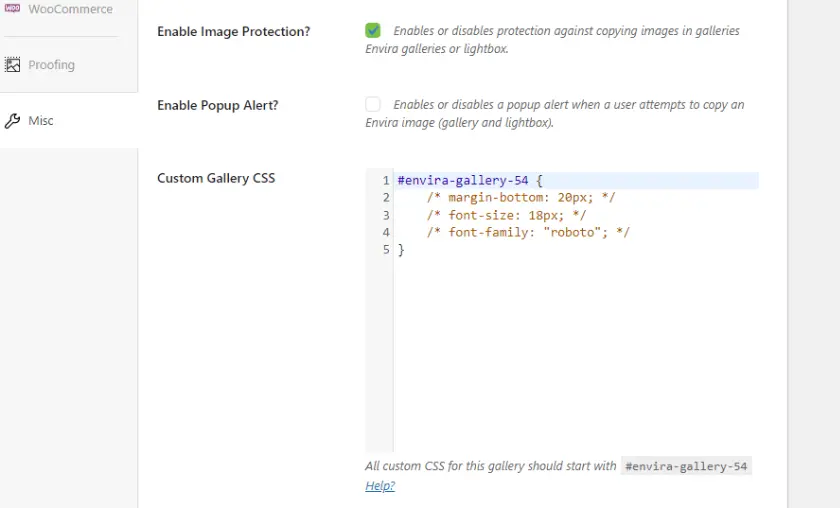
This add-on gives you the flexibility to add your own CSS and customize your gallery to your liking.
If you need to fix any design flaws in your gallery, there is a handy feature in the Miscellaneous settings that allows you to add CSS code. It is very easy to use.
I fully understand why this is everyone’s favorite addon. Image theft is a big concern for website owners. It is all too common for people to download a great image and use it on their own website without giving credit to the owner.
But with this addon, you can prevent right-clicking and easy downloading of your images.
You can find this function in the Miscellaneous settings (as shown in the picture above).
Printing Addon:

If you are an artist and want your visitors to be able to print images directly from your website, this plugin is a real treasure. You can enable a direct download button for both lightbox and gallery images.
This is a very interesting feature to display your favorite or most popular posts and pages. With this add-on, you can create a gallery that displays all your featured content.
And the best thing is that you don’t need any additional plugins to display your featured posts – all in one place!
Instagram Addon:
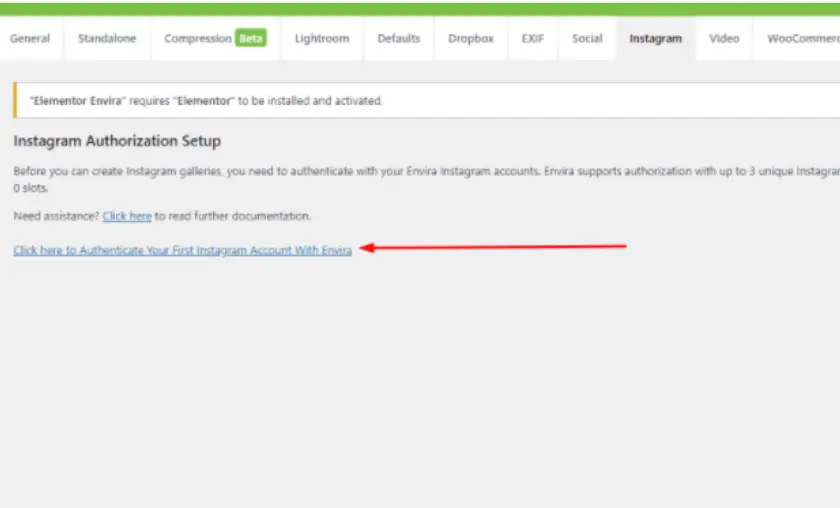
Since you are not limited to using only images from your website, you can also incorporate social media into your galleries.
With Envira Gallery, you can easily display your Instagram images directly in your galleries.
To set it up, just go to Settings > Instagram and authenticate it with your Instagram account. Allow all media to sync with the plugin and you’re done!
Password Protection Addon:
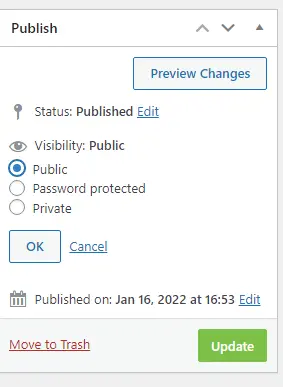
If you sell images on your website, the password protection add-on can be of great help to you. With this feature, you can set passwords for specific images so that only members who have the password can access them.
To add a password, simply select “Visibility” > “Password protected” and enter the password in the text box before submitting.
Pagination Addon:
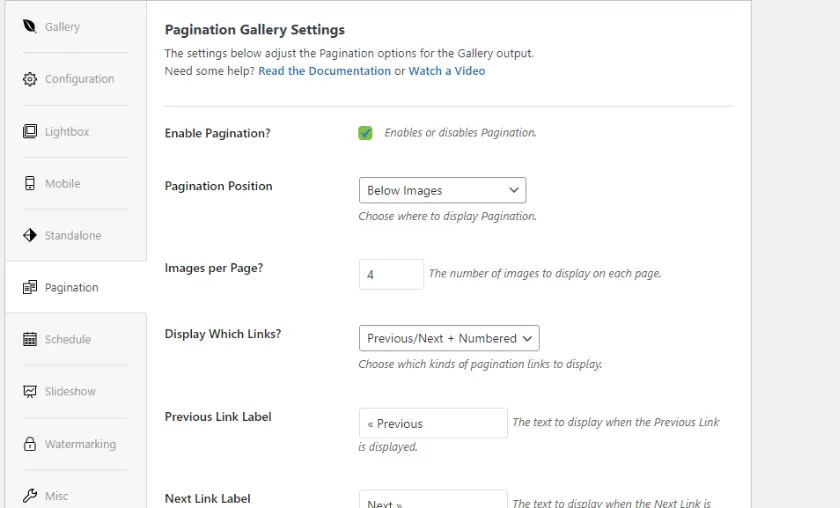
This feature is in high demand right now. Starting in 2021, Google started ranking pages based on their loading times, and many high-ranking websites have been removed from the list due to slow loading times.
With this add-on, you can create a gallery directly if most of your images have the same problem.
Also, it allows you to create multiple pages for a gallery, which can help speed up the loading process. It’s a great way to improve the performance of your website.
You are absolutely right about the importance of Pinterest when it comes to images.
Many people still prefer to browse images on Pinterest before taking any action, and some even save them to their collections.
With the Pinterest add-on, these tasks become even easier. It’s a great way to integrate Pinterest into your website.
Schedule Addon:
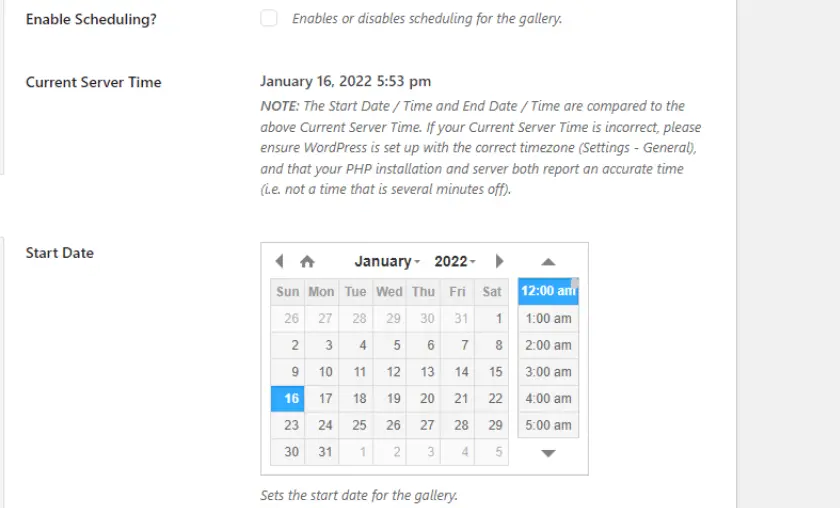
This add-on is especially useful for events. You can set a specific duration and date to display a particular gallery or even a specific image within the gallery.
Tags Addon:
With this extension, you can easily add tags to your images.
Watermarking Addon:
Adding a watermark is another great way to protect your images from theft on the Internet. You can use any logo or text image as a watermark on all your images.
It’s an easy and effective way to safeguard your content.
EXIF Addon:

This feature is especially useful for photographers. You can add EXIF metadata to your images, such as the device model and lens used.
You can then choose where to display this information in the frame and even display the details outside the image frame.
This feature allows users to zoom in and out of images.
Envira Gallery Defaults Addon:
This add-on can help you save time when creating a gallery. If you select a default theme and layout for your gallery, it will be automatically applied when you upload a set of images.
If you have built your website using the Elementor page builder, you can use the Elementor plugin to create galleries directly through the plugin.
This allows the Elementor add-on to create galleries using its own settings, giving you maximum flexibility and customization options for your website.
This feature can be a great help for both SEO and user experience. It allows users to track their position on your website and quickly access a gallery.
Downloads Addon:
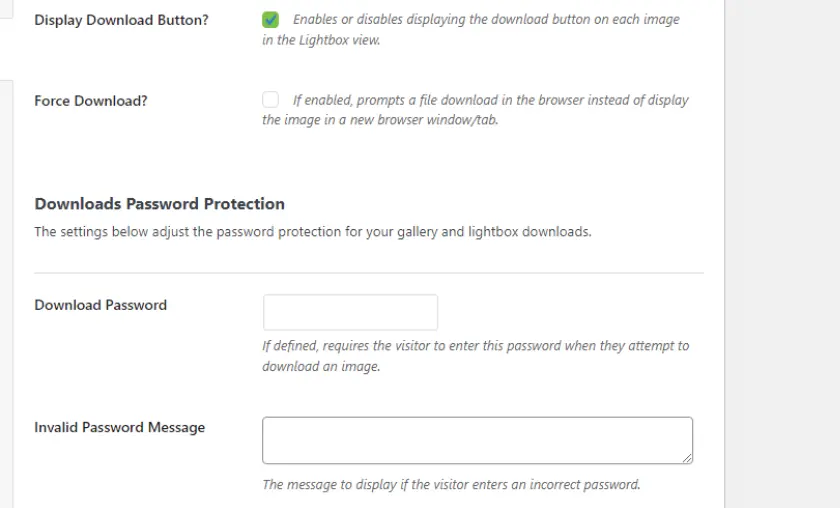
With this add-on, you can easily add a button below the images on your website so that visitors can download them.
If you want to restrict access to certain people, you can set a password for downloading. This is a great feature for selling images or offering them as a courtesy to others.
Lightroom Addon:
This feature is a game-changer for photographers. With it, you can transfer images directly from Lightroom to my website. It’s very easy and saves me a lot of time.

To use it, just go to the Envira Gallery settings on the right side of my WordPress dashboard. Then select the Lightroom tab and choose the user account you want to add images to.
If you have multiple Lightrooms, you can generate multiple access tokens or just copy what’s already there and integrate it with your Lightroom publishing manager.
If you have a lot of images to upload, this addon is a lifesaver. All you have to do is create a zip folder with your images and upload it to the Misc folder.
WooCommerce Addon:
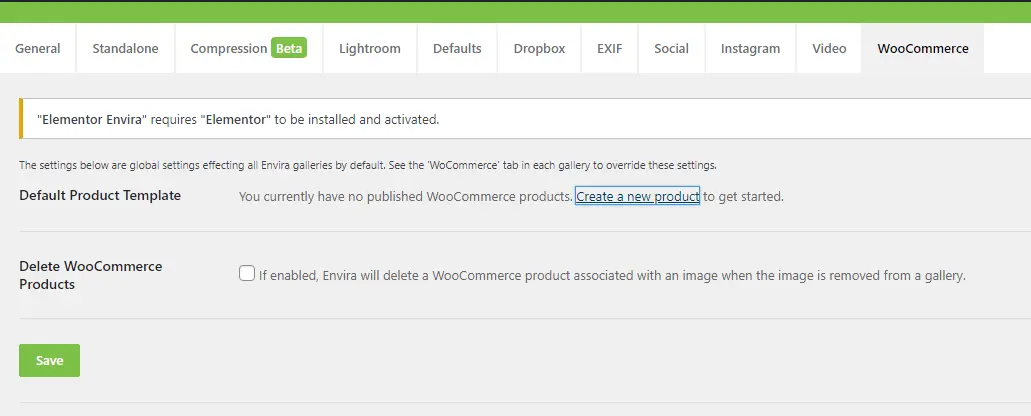
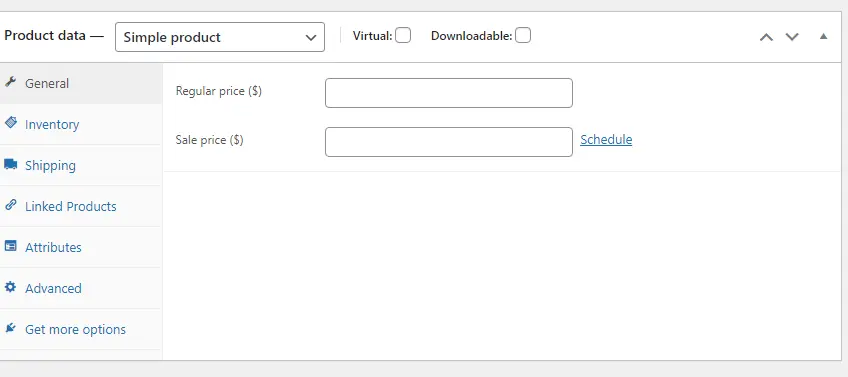
This addon is just what you need to sell your images on my website. You can sell them individually or as a complete gallery.
And with the WooCommerce plugin, you can easily set prices and choose a payment gateway. it couldn’t be more convenient!
Proofing Addon:

This feature is great for both website owners and buyers. All you have to do is activate the proofing settings in the gallery. In addition, you can choose how many images a buyer can select, their preferred sizes and much more.
You can control whether customers can edit or delete orders. And you can even enable the Proofing option in Lightbox from the settings panel.
Social Addon:
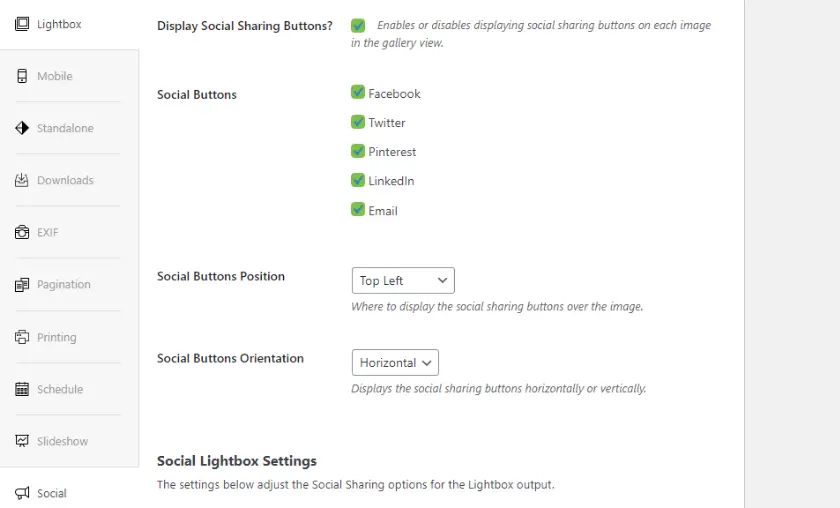
The social plug-in makes it easy to share images on five platforms: Twitter, Facebook, Pinterest, LinkedIn and email. You can choose where to place the icons, in any of the four corners of the image or place them horizontally or vertically.
You can also allow the social icons to appear in the lightbox.
And if you want to share different captions, text, and tags for each social network, you can do that too. There are different settings for each of the five social networks – it’s so customizable!
Videos Addon:
Sometimes images are not enough to show the potential of a product or to entice customers to buy it. That’s where videos come in. They are becoming increasingly popular and can help increase product sales conversion rates.
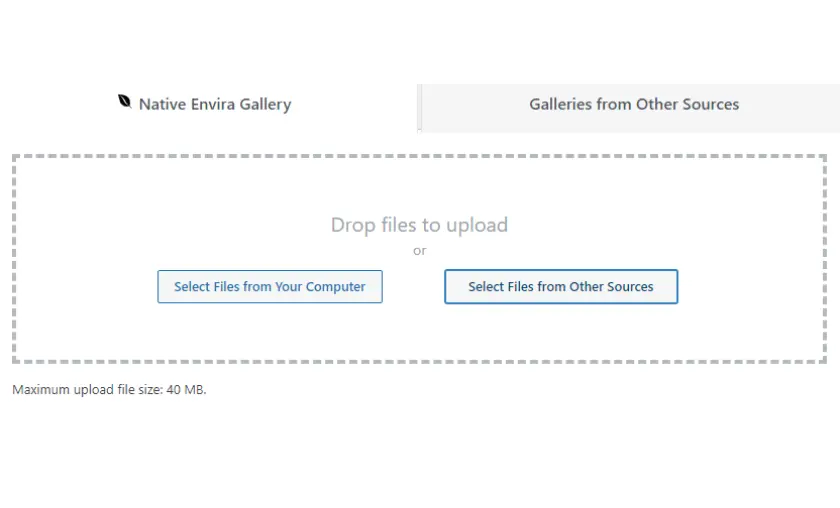
Envira has listened to our wishes and has added a Video addon. You can find it by going to the gallery settings panel and clicking on the Video addon. Then just select “select from other sources” and “insert videos” to insert or upload videos.
You can add a short description and the URL of the video to the title. It even allows you to add videos from YouTube, Vimeo, Dailymotion, Instagram, Wistia, and Twitch, as well as local storage.
You can create a dynamic gallery for specific posts or pages. It’s just like creating a normal gallery. It’s that easy, isn’t it?
Albums Addon:
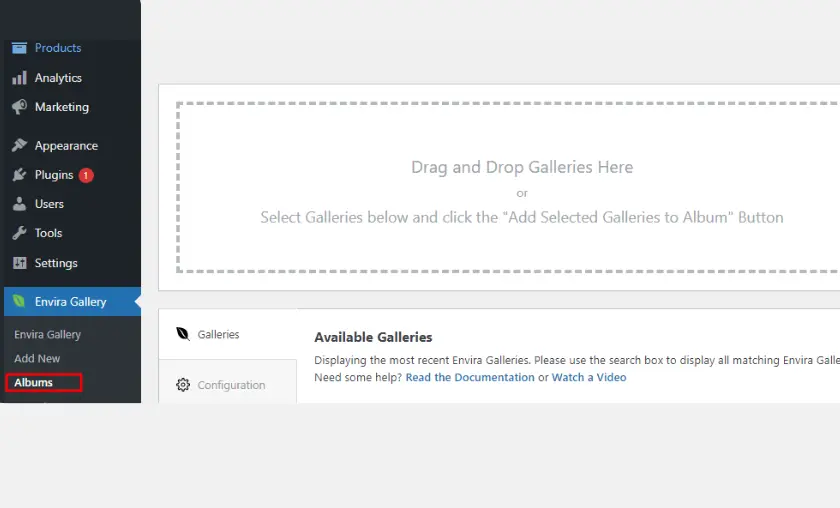
If you have several galleries in the same category, you can put them all in one album for easy browsing.
All you have to do is click on the album settings on the right and add or use existing galleries to create a new album.
For an enhanced viewing experience, you can enable this add-on to view my images in full screen. It’s very easy: just enable the feature in the Lightbox settings.
Envira Plugin Pricing
The plugin is available in four packages:
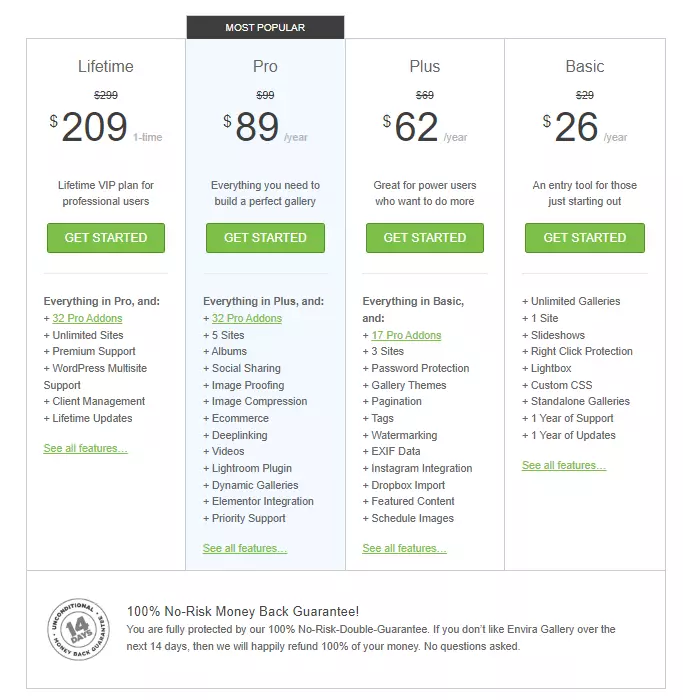
Each package comes with its own set of features, with its own advantages and disadvantages. Give your images the amazing experience of being displayed with some super-effective add-ons!
FAQ’s
How do I add a new gallery to my website using Envira Gallery Pro?
To create a new gallery, simply access the WordPress dashboard and go to the Envira Gallery settings. Click on the “Add New” option, provide a name for your gallery, and then upload images or select existing ones from your media library. After saving the gallery, you can copy the generated shortcode and paste it into the page or post where you want the gallery to appear.
Can I protect my images from unauthorized downloads with Envira Gallery Pro?
Yes, Envira Gallery Pro offers a powerful “Protection Addon” that allows you to prevent right-clicking and easy downloading of your images. This feature adds an additional layer of security and helps protect your valuable images from theft on the internet.
Does Envira Gallery Pro offer support for video galleries?
Yes, Envira Gallery Pro supports video galleries, making it easier to showcase video content to your website visitors. You can insert videos from various sources like YouTube, Vimeo, Dailymotion, Instagram, Wistia, Twitch, and even local storage.
Does Envira Gallery Pro offer integration with social media platforms?
Yes, Envira Gallery Pro comes with the “Social Addon,” enabling easy sharing of images on platforms like Twitter, Facebook, Pinterest, LinkedIn, and via email. You can customize the placement of social icons, allowing visitors to share images with their networks, and enhancing your content’s reach and engagement.

Mike DaVinci HighTechBlogging.com
Mike DaVinci is a skilled content writer with a talent for storytelling. He specializes in creating captivating narratives that engage readers and leave them feeling inspired. His writing has been featured in various publications, including magazines, blogs, and business websites. Mike’s particular interest in human interest stories allows him to uncover the heart of any story and convey it to his readers in an emotional and authentic way. He believes that storytelling is a powerful tool for connecting with people and inspiring positive change in the world.
To read more similar articles, click here
Thanks for visiting our Website. If you appreciate our work, kindly show us some support in our comments section. 🙂